Несмотря на то, что технология HTML5 старается активно вытеснить Flash, вторая остается по-прежнему востребованной на многих сайтах, а значит, пользователям требуется установленный на компьютере Flash Player. Сегодня речь пойдет о настройке данного медиапроигрывателя.
Настройка Flash Player, как правило, требуется в нескольких случаях: при решении проблем с работой плагина, для правильно работы оборудования (веб-камеры и микрофона), а также для тонкой настройки работы плагина для разных веб-сайтов. Данная статья – это небольшой экскурс по настройкам Flash Player, зная предназначение которых, вы сможете настроить работу плагина на свой вкус.
Настройка Adobe Flash Player
Вариант 1: настройка Flash Player в меню управления плагинами
Прежде всего, Flash Player работает на компьютере в виде браузерного плагина, соответственно, и управлять его работой можно через меню браузера.
В основном через меню управления плагинами осуществляется активация или отключение работы Flash Player. Данная процедура выполняется для каждого браузера по-своему, поэтому данный вопрос более подробно прежде уже был освящен в одной из наших статей.
Кроме этого, настройка Flash Player через меню управления плагинами может потребоваться для устранения неполадок. Сегодня браузеры делятся на две категории: те, в которые Flash Player уже вшит (Google Chrome, Яндекс.Браузер), и те, для которых установка плагина производится отдельно. Если во втором случае, как правило, все решает переустановка плагина, то для браузеров, в которые уже вшит плагин, неработоспособность Flash Player остается неясной.
Дело в том, если у вас на компьютере установлено два браузера, например, Google Chrome и Mozilla Firefox, а для второго дополнительно установлен Flash Player, то оба плагина могут вступать друг с другом в конфликт, из-за чего в браузере, в котором уже по идее предустановлен рабочий Flash Player, Flash-контент может и не работать.
В данном случае нам потребуется провести небольшую настройку Flash Player, которая позволит устранить этот конфликт. Для этого в браузере, в котором Flash Player уже «вшит» (Google Chrome, Яндекс.Браузер), вам потребуется перейти по следующей ссылке:
В верхнем правом углу отобразившегося окна щелкните по кнопке «Подробнее».
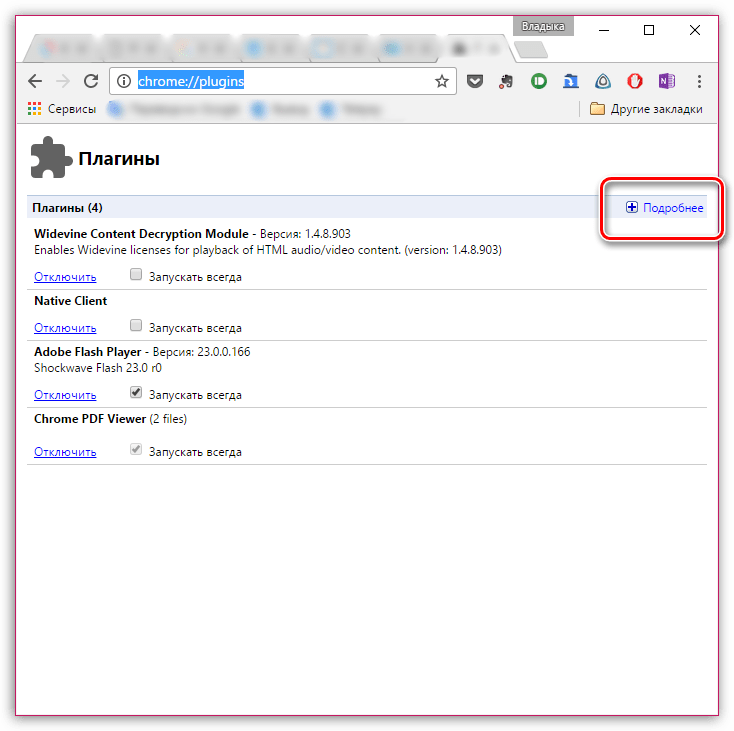
Найдите в списке плагинов Adobe Flash Player. В вашем случае может работать два модуля Shockwave Flash – если это так, вы сразу это увидите. В нашем случае же работает только один модуль, т.е. конфликт отсутствует.
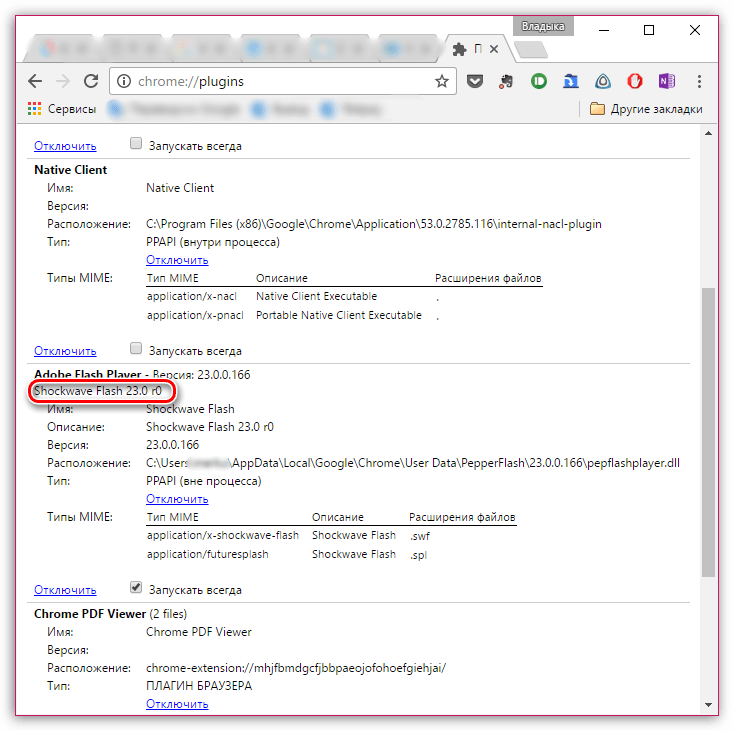
Если в вашем случае имеется два модуля, вам потребуется отключить работу того, расположение которого находится в системной папке «Windows». Обратите внимание, что кнопку «Отключить» необходимо нажать непосредственно относящуюся к определенному модулю, а не ко всему плагину в целом.
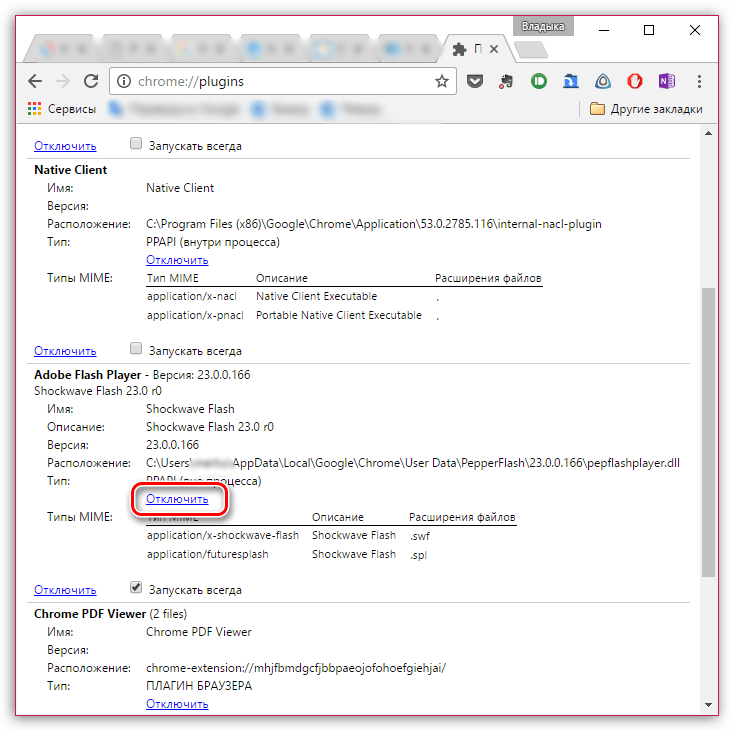
Перезагрузите браузер. Как правило, после такой небольшой настройки конфликт flash Player решается.
Вариант 2: общая настройка Flash Player
Чтобы попасть в менеджер настроек Flash Player, откройте меню «Панель управления», а затем пройдите к разделу «Flash Player» (данный раздел также можно найти через поиск в правом верхнем углу).
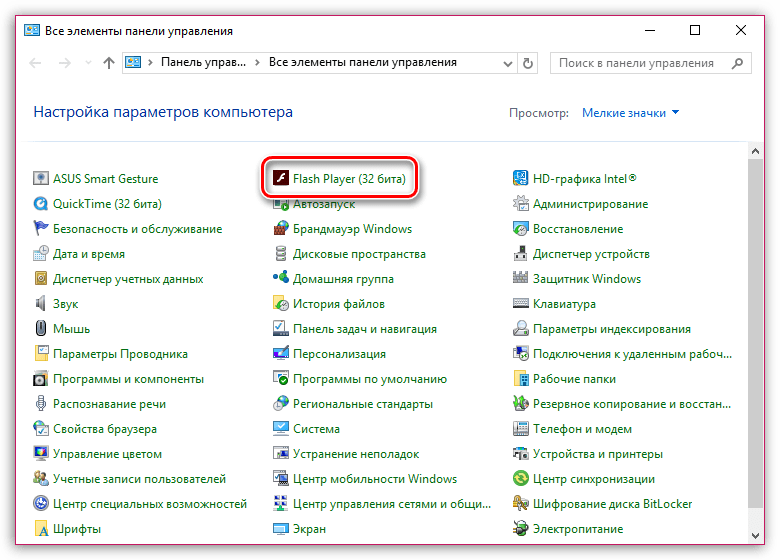
На вашем экране отобразится окно, поделенное на несколько вкладок:
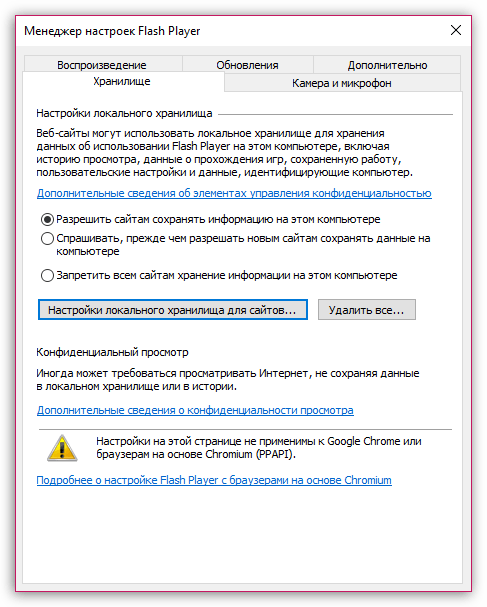
1. «Хранилище». Данный раздел отвечает за сохранение некоторых данных сайтов на жесткий диск компьютера. Например, здесь могут храниться настройки разрешения видео или громкости звука. При необходимости, здесь можно как полностью ограничить сохранение этих данных, так и настроить список сайтов, для которых хранение будет разрешено или, наоборот, запрещено.
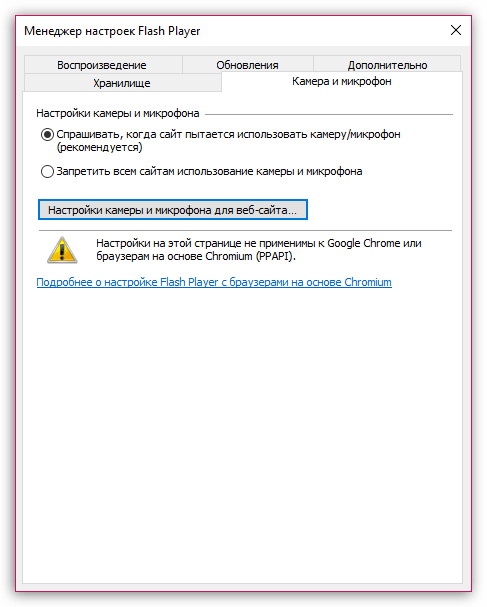
2. «Камера и микрофон». В данной вкладке настраивается работа камеры и микрофона на различных сайтах. По умолчанию, если при переходе на сайт Flash Player потребуется доступ к микрофону или камере, соответствующий запрос будет отображаться на экране пользователя. При необходимости, подобный вопрос плагина может быть и вовсе отключен или же составлен список сайтов, для которых, например, доступ к камере и микрофону будет всегда разрешен.
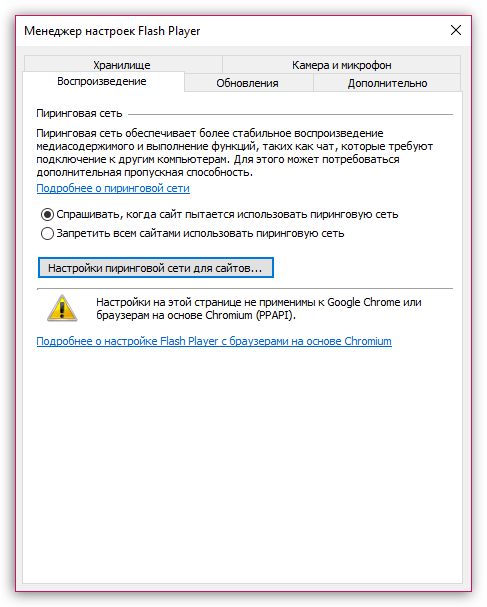
3. «Воспроизведение». В этой вкладке осуществляется настройка пиринговой сети, которая направлена на повышение стабильности и производительности за счет нагрузки на канал. Как и в случае с предыдущими пунктами, здесь вы можете полностью отключить сайтам использование пиринговой сети, а также настроить белый или черный список веб-сайтов.
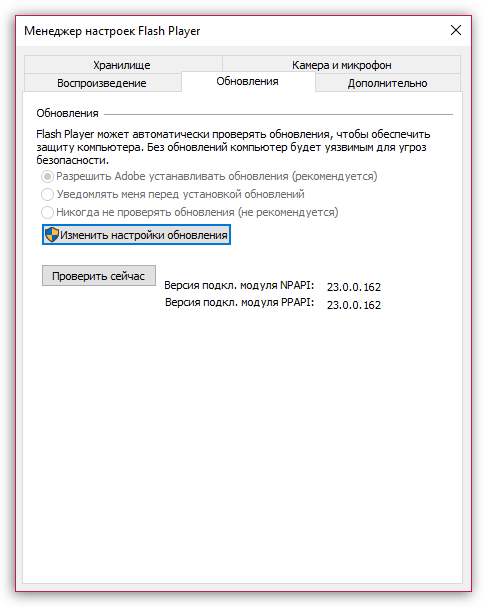
4. «Обновления». Крайне важный раздел настройки Flash Player. Еще на этапе установки плагина вам поступает вопрос, как вы хотите устанавливать обновления. В идеале, конечно, чтобы у вас была активирована автоматическая установка обновлений, что, собственно, и можно активировать через данную вкладку. Перед тем как вы сможете выбрать нужный параметр обновления, кликните по кнопке «Изменить настройки обновления», которая требует подтверждения действий администратора.
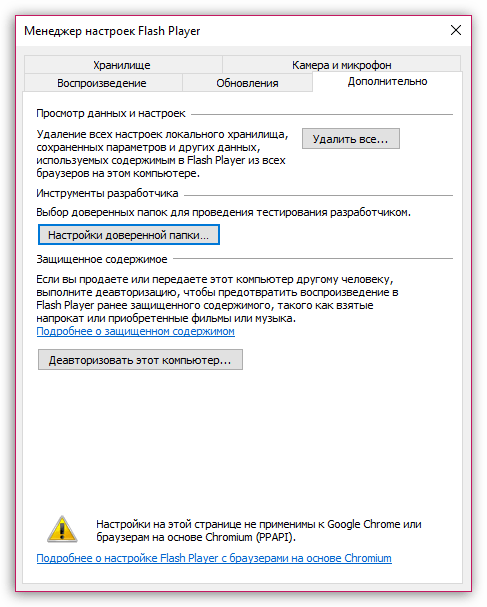
5. «Дополнительно». Заключительная вкладка общих настроек Flash Player, которая отвечает за удаление всех данных и настроек Flash Player, а также за деавторизацию компьютера, что позволит предотвратить воспроизведение с помощью Flash Player ранее защищенных видеозаписей (к подобной функции следует прибегать при передаче компьютера чужому человеку).
Вариант 3: настройка через контекстное меню
В любом браузере при отображении Flash-контента можно вызвать специальное контекстное меню, в котором осуществляется управление медиапроигрывателем.
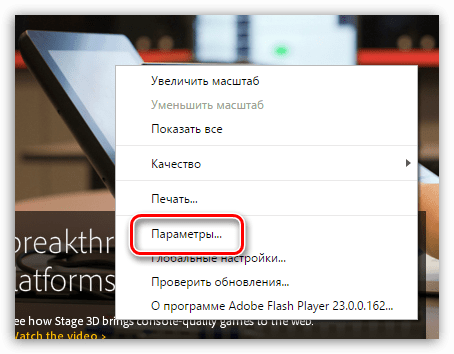
Чтобы выбрать подобное меню, щелкните в браузере по любому Flash-контенту правой кнопкой мыши и в отобразившемся контекстном меню выберите пункт «Параметры».
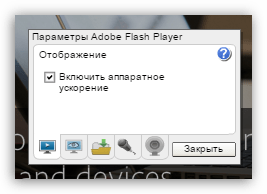
На экране отобразится миниатюрное окошко, в котором умудрились разместиться несколько вкладок:
1. Аппаратное ускорение. По умолчанию в Flash Player активирована функция аппаратного ускорения, которая позволяет снизить нагрузку Flash Player на браузер. Однако, в некоторых случаях данная функция может провоцировать неработоспособность плагина. Именно в такие моменты ее и следует отключать.
2. Доступ к камере и микрофону. Вторая вкладка позволяет разрешать или запрещать текущему сайту доступ к вашей камере или микрофону.
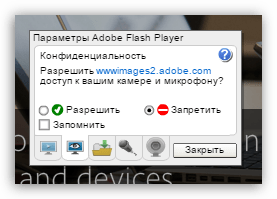
3. Управление локальным хранилищем. Здесь для открытого данный момент сайта вы можете разрешить или запретить хранить на жестком диске вашего компьютера информацию о настройках Flash Player.
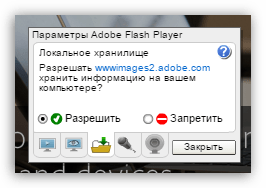
4. Настройка микрофона. По умолчанию за основу взят усредненный вариант. Если сервис, после предоставления Флеш Плееру микрофона, по-прежнему вас не слышит, здесь вы можете настроить его чувствительность.
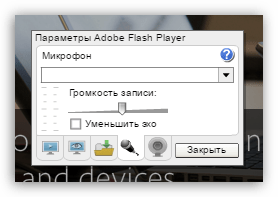
5. Параметры веб-камеры. Если вы используете на компьютере несколько веб-камер, то в данном меню вы можете выбрать, какая из них будет использоваться плагином.
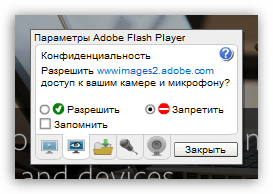
Это все настройки Flash Payer, доступные пользователю на компьютере.
Отблагодарите автора, поделитесь статьей в социальных сетях.
Global security settings for content creators
Table of Contents
This content requires Flash
Note: The Settings Manager that you see above is not an image; it is the actual Settings Manager itself. Click the tabs to see different panels, and click the options in the panels to change your Adobe Flash Player settings.
If you create or manage content that runs in Flash Player 8 or later, the information on this page is relevant for you. If not, see Global Security Settings panel instead.
You are most likely seeing this page because you are testing your SWF or FLV content locally, and that content is trying to use older security rules to communicate with the Internet. This page provides information about how to test your content locally when it runs in Flash Player 8 or later. You can get more detailed information here.
As a Flash developer, you might often work on SWF or FLV content that is eventually deployed on the Internet. During development of these applications, you might need to perform testing while the SWF or FLV content is stored locally on your own computer, rather than deployed on a web server. In this local testing situation, Flash Player might show security warnings that prevent your application from functioning as intended. You can resolve this issue by using the Settings Manager to designate your own SWF or FLV content as trusted.
(Flash Player 8 and later only) To specify that SWF or FLV content on your computer may communicate with the Internet:
- In the Global Security Settings panel, above, click the pop-up menu and select Add Location.
The Add Location box opens. If you arrived at the Settings Manager by clicking the Settings button in a dialog box, the Add Location box contains a path that looks something like C:directorynamefilename.swf or /Users/directoryname/filename.swf; this path tells you which file tried to communicate with the Internet and was stopped by Flash Player security. If the path contains the content that you want to let communicate with the Internet, copy and paste the path into the Trust this location box. Or, click one of the Browse buttons and find the content yourself.
Identify a directory or directories on your local file system that you know contains only your own work, and does not contain SWF or FLV content you might download from other sources. When you add a directory, all the files and subdirectories in that directory are trusted. Avoid trusting top-level directories.
Click Confirm.
The location is added to the Security Settings panel. Locations listed are always allowed to communicate with the Internet, even if the Always Deny or Always Ask options at the top of the Security panel are selected.
After you add trusted locations, you must restart the local SWF or FLV content by either refreshing the browser or restarting the player.
Table of Contents
Settings Manager
This information applies to Adobe Flash Player on desktop and notebook computers. To change Flash Player settings on mobile devices, visit the Settings Manager for mobile devices.
Who uses this Settings Manager?
Beginning with Flash Player 10.3, the Local Settings Manager supersedes this Online Settings Manager for managing global settings on Windows, Mac, and Linux computers. The Local Settings Manager can be accessed in the Control Panel on Windows and in System Preferences on Mac. Users of other operating systems and earlier versions of Flash Player can continue to use the Online Settings Manager described here.
To access the local Flash Player Settings Manager that is native to your operating system:
- Windows: click Start > Settings > Control Panel > Flash Player
- Macintosh: System Preferences (under Other) click Flash Player
- Linux Gnome: System > Preferences > Adobe Flash Player
- Linux KDE: System Settings > Adobe Flash Player
To access Help for the local Settings Manager, click any of the individual Learn more…. links on the Settings Manager tabs, or click any of these links:
| Tab name/Help page | URL |
|---|---|
| Storage | http://adobe.com/go/flash-player-settings-storage |
| Camera and Mic | http://adobe.com/go/flash-player-settings-camera-and-mic |
| Playback | http://adobe.com/go/flash-player-settings-playback |
| Advanced | http://adobe.com/go/flash-player-settings-advanced |
What can I do with the Settings Manager?
Adobe is committed to providing you with options to control SWF or FLV content and applications that run in Adobe Flash Player. The Flash Player Settings Manager lets you manage global privacy settings, storage settings, and security settings, by using the following panels:
- To specify whether websites must ask your permission before using your camera or microphone, you use the Global Privacy Settings panel.
- To specify the amount of disk space that websites you haven’t yet visited can use to store information on your computer, or to prevent websites you haven’t yet visited from storing information on your computer, you use the Global Storage Settings panel.
- To view or change your security settings, you use the Global Security Settings panel.
- To specify if and how often Flash Player should check for updated versions, you use the Global Notifications Settings panel.
- To view or change the privacy settings for websites you have already visited, you use the Website Privacy Settings panel.
- To view or change the storage settings for websites you have already visited, or to delete information that any or all websites have already stored on your computer, you use the Website Storage Settings panel.
- To view or change protected media settings, you use the Protected Content Playback Settings panel.
- To view or change peer-assisted networking settings, you use the Peer-Assisted Networking panel.
How do I get to the Settings Manager?
The Settings Manager is a special control panel that runs on your local computer but is displayed within and accessed from the Adobe website. Adobe does not have access to the settings that you see in the Settings Manager or to personal information on your computer.
Click the links below to open the specific Settings Manager panel that you want. The Settings Manager that you see on the page is not an image; it is the actual Settings Manager. To change your settings, click the tabs to see different panels, and then click the options in the Settings Manager panels that you see on the web page.
The settings in the Settings Manager apply to all websites that contain SWF or FLV content, rather than just a specific website.
What are privacy settings?
Applications that run in Flash Player may want to have access to the camera and/or microphone available on your computer. Privacy settings let you specify whether you want applications from a particular website to have such access. Note that it is the person or company that has created the application you are using that is requesting such access, not Adobe (unless Adobe has created the application that wants access to your camera or microphone).
It is the responsibility of the person or company requesting access to make it clear to you why they want access and how they plan to use the audio or video. You should be aware of the privacy policy of anyone who is requesting audio or video access. For example, see the Adobe privacy policy. Contact the website requesting access for information on their privacy policy.
It’s important to understand that even though this settings panel is part of Flash Player, the audio and video will be used by an application created by a third party. Adobe assumes no responsibility for third-party privacy policies, actions of third-party companies in capturing audio or video on your computer, or such companies’ use of such data or information.
To specify privacy settings for all websites, use the Global Privacy Settings panel. To specify privacy settings for individual websites, use the Website Privacy Settings panel.
What are storage settings?
Applications that run in Flash Player may want to store some information on your computer, but the amount they can store is limited to 100 kilobytes unless you agree to allocate additional space. Local storage settings let you specify how much disk space, if any, applications from a particular website can use to store information on your computer. Note that it is the person or company that has created the application you are using that is requesting such access, not Adobe (unless Adobe has created the application that wants to save the information). It is the responsibility of the person or company requesting access to make it clear to you why they want access and how they plan to use the information they save. You should be aware of the privacy policy of anyone who is requesting access to your computer. For example, see the Adobe privacy policy. Contact the website requesting access for information on their privacy policy.
It’s important to understand that even though this settings panel is part of Flash Player, the information will be used by an application created by a third party. Adobe assumes no responsibility for third-party privacy policies, actions of third-party companies in storing information on your computer, or such companies’ use of such data or information.
To specify storage settings for websites you haven’t yet visited, use the Global Storage Settings panel. To specify storage settings for websites you have already visited, use the Website Storage Settings panel.
What are security settings?
Adobe has designed Flash Player to provide security settings that do not require you to explicitly allow or deny access in most situations. Over time, as SWF and FLV content have become more sophisticated, Flash Player has also become more sophisticated, offering users additional privacy and security protections. However, you might occasionally encounter older SWF or FLV content that was created using older security rules. In these cases, Flash Player asks you to make a decision: You can allow the content to work as its creator intended, using the older security rules, or you can choose to enforce the newer, stricter rules. The latter choice helps ensure that you only view or play content that meets the most recent standards of security, but it may sometimes prevent older SWF or FLV content from working properly.
When older content runs in a newer version of the player, and Flash Player needs you to make a decision about enforcing newer rules or not, you may see one of the following pop-up dialog boxes. These dialog boxes ask your permission before allowing the older SWF or FLV content to communicate with other locations on the Internet:
- A dialog box might appear alerting you that the SWF or FLV content you are using is trying to use older security rules to access information from a site outside its own domain and that information might be shared between two sites. Flash Player asks if you want to allow or deny such access.
In addition to responding to the dialog box, you can use the Global Security Settings panel to specify if Flash Player should always ask for your permission, through the dialog box, before allowing access; always deny access, without asking first; or always allow access to other sites or domains without asking your permission.
(Flash Player 8 and later) If you have downloaded SWF or FLV content to your computer, a dialog box might appear alerting you that the content is trying to communicate with the Internet. Flash Player 8 and later versions do not allow the local SWF or FLV content to communicate with the Internet, by default.
Using the Global Security Settings panel, you can specify that certain applications that run in Flash Player on your computer may communicate with the Internet.
To change your security settings or learn more about your options, see the Global Security Settings panel.
What are protected content playback settings?
Some content on the Internet is protected by the content provider using Adobe Flash Access. To enjoy this protected content, users must first get content licenses from the content provider. These content licenses are automatically downloaded to your computer, for example, when you rent or purchase the protected content. Flash Player saves these licenses on your computer.
To manage or deactivate these licenses, use the Protected Content Playback Settings panel.
What are peer-assisted networking settings?
A website that serves audio and video to your computer can deliver the content with better performance if users who are playing the same content share their bandwidth. Sharing bandwidth allows the audio or video to play more smoothly, without skips or pauses from buffering. This is called peer-assisted networking, since peers on the network assist each other to provide a better experience. Flash Player only shares bandwidth using peer-assisted networking with your permission.
If you enable this option, you are not agreeing to share your bandwidth whenever an application wants to use it. You are only allowing applications to ask you whether you want to share your bandwidth. In most cases, you want to share your bandwidth only when you are using a high-speed Internet connection.
Note that sharing your bandwidth increases the amount of data your network provider delivers to your device. If you pay a flat monthly fee for unlimited network data, using peer-assisted networking won’t increase your monthly bill.
However, if you pay for a limited amount of data or are unsure how you are charged for network usage, you probably want to disable peer-assisted networking. If you do so, you will never be asked whether you want to share your bandwidth.
To specify whether or not to use peer-assisted networking, use the Peer-Assisted Networking panel.
If I’ve already set privacy and disk space options in my browser, do I need to do it again?
You may be aware that some websites work together with your browser to store small amounts of data, called cookies, on your computer for their own use in the future. For example, when you go to a website regularly, it may welcome you by name; your name is probably stored in a cookie, and you can use browser options to determine whether you want cookies or not. You may also have specified in your browser that pages you visit can take up only a certain amount of disk space.
When SWF or FLV content is being played, the settings you select for Flash Player are used in place of options you may have set in your browser. That is, even if you have specified in your browser settings that you do not want cookies placed on your computer, you may be asked if an application that runs in Flash Player can store information. This happens because the information stored by Flash Player is not the same as a cookie; it is used only by the application and has no relation to any other Internet privacy or security settings you may have set in your browser.
Similarly, the amount of disk space you let the application use has no relation to the amount of disk space you have allotted for stored pages in your browser. That is, when SWF or FLV content is being played, the amount of disk space you allow here is in addition to any space your browser is using for stored pages.
No matter how you may have configured your browser, you still have the option to allow or deny the application that runs in Flash Player permission to store the information and to specify how much disk space the stored information can occupy.