
A production deployment of SharePoint 2013 or 2016 should ensure that all HTTP traffic is encrypted in transit, however many users will still type http:// in their browser or have links that point to http:// instead of https://. In these cases it can beneficial to automatically redirect users to the proper URL. One way of accomplishing this is the URL Rewrite module for IIS.
Key Terms
Rewrite — Modifies the incoming URL, the outgoing URL, or both.
Redirection — Uses HTTP status codes such as 301 or 302 to redirect the client to a different location. This involves an additional client round trip.
The support for redirects and rewrites with SharePoint is documented in KB2818415. Since a HTTP 301/302 redirect to inform the browser of the updated URL is the preferred option for SharePoint, that will be the focus of this post. Please note that 301/302 redirects may not work with Office client applications.
Uses for redirect
In most cases a redirect is used for one of two reasons:
- Redirecting the user from http to https to enforce SSL communication. When a SharePoint farm is load balanced this is typically done using the load balancer but it some cases can be done on the SharePoint server or another server running IIS by using the IIS URL Rewrite module
- Redirecting a user who has a stale URL, typically when the name is changed during a farm migration or upgrade. This can also be done using a load balancer or any IIS server by implementing the URL Rewrite module.
Step by Step Instructions for HTTP to HTTPS redirect
#1 Download the URL Rewrite tool by following the instructions here
#2 Ensure that the IIS site you are using is configured for the proper port 80 binding. In this case we are listening for all traffic on port 80. But you could restrict this based on host header as needed

#3 Create a new URL rewrite rule


#4 Configure Rule Settings Exactly as follows


Note: In this example
#5 Apply the rule

#6 From the top node disable and enable the rule (alternatively perform IISReset)


Note: web.config file modifications
The URL rewrite rules get written to the web.config file for the site you are working in. For example, the above configuration should result in this addition to the web.config file:
Additional Resources
Supportability of Rewrite and Redirects with SharePoint 2007/2010/2013
http://support.microsoft.com/kb/2818415
Hi,
thanks for this post. It was helpfull. But there is an error. The regular expression must be “.*” instead “*”.
This is from my failed request trace with “*” only:
Great article Damian!
Would there be any performance implication due to this rule? Considering this as I’m looking to implement this to a site where we’ve 20K+ users.
Any suggestion anyone? Appreciate any feedback!
I do not have any specific performance metrics for implementing the Rewrite module. In this case where we are doing a redirect only on the first request I wouldn’t expect it have a heavy impact.
Matches Wildcard d >
I chose to make a regular Expression instead of Wildcard and changed the pattern to (.*).
The Redirect URL was changed to https://
THis is close for me but my original url has port included http://xyz:8787 that is being appended to the final which of course makes ssl fail
You can also config the redirect domain with or without www using URL rewrite. The SSL cert only include: www FQDN.
Thanks for the example!!
Thanks for this post. great article!
If you use the redirect URL https://
If you use the “web.config” copy-paste instead of the wizard, as Bo Chulindra said, don’t forget to add
appendQueryString=”false”
to the action section, to avoid double querystring redirection.
Also, I prefer redirecttype=Permanent.
Complete action line:
Hi,
thanks for this post. It id helpfull.
По умолчанию в Exchange Server URL-адрес* ServerName* перенаправляет пользователей на HTTPS:// ИмяСервера/OWA. By default in Exchange Server, the URL https:// redirects users to https:// /owa. Но если кто-то пытается получить доступ к Outlook в Интернете (прежнее название — Outlook Web App) с помощью http:// * или http:// */OWA, они возникнет ошибка. But, if anyone tries to access Outlook on the web (formerly known as Outlook Web App) by using http:// or http:// /owa, they’ll get an error.
Вы можете настроить перенаправление HTTP для Outlook в Интернете, чтобы запросы для http://<> ServerName или http:// /OWA автоматически перенаправлялись на HTTPS:// /OWA. You can configure http redirection for Outlook on the web so that requests for http:// or http:// /owa are automatically redirected to https:// /owa. Для этого в Службы IIS (IIS) необходимо выполнить приведенные ниже действия по настройке. This requires the following configuration steps in Internet Information Services (IIS):
Удалите параметр Требовать SSL для веб-сайта по умолчанию. Remove the Require SSL setting from the default website.
Восстановите параметр Требовать SSL для других виртуальных каталогов на веб-сайте по умолчанию, где этот параметр был включен по умолчанию (кроме каталога /owa). Restore the Require SSL setting on other virtual directories in the default website that had it enabled by default (except for /owa).
Настройте веб-сайт по умолчанию на перенаправление HTTP-запросов к виртуальному каталогу /owa. Configure the default website to redirect http requests to the /owa virtual directory.
Отключите перенаправление HTTP для всех виртуальных каталогов на веб-сайте по умолчанию (включая каталог /owa). Remove http redirection from all virtual directories in the default website (including /owa).
Чтобы изменения вступили в силу, перезагрузите службы IIS. Reset IIS for the changes to take effect.
По умолчанию для параметров перенаправления SSL и HTTP для всех виртуальных каталогов на веб-сайте по умолчанию на веб-сайте по умолчанию на сервере Exchange Server по умолчанию используется параметр параметры перенаправления SSL и HTTP на веб-сайте по умолчанию в конце этой статьи. For the default SSL and http redirect settings on all virtual directories in the default website, see the Default Require SSL and HTTP Redirect settings in the default website on an Exchange server section at the end of this topic.
Что нужно знать перед началом работы What do you need to know before you begin?
Предполагаемое время выполнения процедуры: 15 минут. Estimated time to complete this procedure: 15 minutes.
Для выполнения этих процедур необходимы соответствующие разрешения. Сведения о необходимых разрешениях см. в статье запись "Диспетчер IIS" в разделе статьи Разрешения клиентов и мобильных устройств, посвященном разрешениям Outlook в Интернете. You need to be assigned permissions before you can perform this procedure or procedures. To see what permissions you need, see the "IIS Manager" entry in the Outlook on the web permissions section of the Clients and mobile devices permissions topic.
Процедуры, описанные в этом разделе, могут привести к тому, что файл Web. config %ExchangeInstallPath%ClientAccessOAB будет создан в папке. The procedures in this topic might cause a web.config file to be created in the folder %ExchangeInstallPath%ClientAccessOAB . Если в дальнейшем отключить перенаправление HTTP для Outlook в Интернете, Outlook может зависать, когда пользователи выбирают команду Отправка и получение. If you later remove http redirection for Outlook on the web, Outlook might freeze when users click Send and Receive. Чтобы предотвратить зависание Outlook после удаления перенаправления HTTP, удалите файл Web. config в %ExchangeInstallPath%ClientAccessOAB папке. To prevent Outlook from freezing after you remove http redirection, delete the web.config file in %ExchangeInstallPath%ClientAccessOAB .
Теперь для шифрования данных, которыми обмениваются компьютерные системы, используется протокол TLS вместо протокола SSL. Эти протоколы настолько сходны между собой, что термины "SSL" и "TLS" (без версий) часто используются как взаимозаменяемые. Поэтому когда в статьях по Exchange, Центр администрирования Exchange и Командная консоль Exchange упоминается термин "SSL", часто под ним подразумевается как протокол SSL, так и протокол TLS. Как правило, термин "SSL" обозначает именно протокол SSL только в тех случаях, когда указан номер версии (например, SSL 3.0). О том, почему следует отключить протокол SSL и перейти на протокол TLS, см. в статье Как устранить уязвимость SSL 3.0. Secure Sockets Layer (SSL) is being replaced by Transport Layer Security (TLS) as the protocol that’s used to encrypt data sent between computer systems. They’re so closely related that the terms "SSL" and "TLS" (without versions) are often used interchangeably. Because of this similarity, references to "SSL" in Exchange topics, the Exchange admin center, and the Exchange Management Shell have often been used to encompass both the SSL and TLS protocols. Typically, "SSL" refers to the actual SSL protocol only when a version is also provided (for example, SSL 3.0). To find out why you should disable the SSL protocol and switch to TLS, check out Protecting you against the SSL 3.0 vulnerability.
Сочетания клавиш для процедур, описанных в этой статье, приведены в статье Сочетания клавиш в Центре администрирования Exchange. For information about keyboard shortcuts that may apply to the procedures in this topic, see Keyboard shortcuts in the Exchange admin center.
Возникли проблемы? Попросите помощи на форумах Exchange. Перейти на форумы можно по следующим ссылкам: Exchange Server, Exchange Online или Exchange Online Protection. Having problems? Ask for help in the Exchange forums. Visit the forums at: Exchange Server, Exchange Online, or Exchange Online Protection.
Этап 1. Удаление параметра "Требовать SSL" для веб-сайта по умолчанию с помощью диспетчера служб IIS Step 1: Use IIS Manager to remove the Require SSL setting from the default website
Откройте диспетчер служб IIS на сервере Exchange. Открыть диспетчер служб IIS в Windows Server 2012 или более поздних версиях легко. Просто нажмите клавишу Windows+Q, введите в строке поиска inetmgr и в списке результатов выберите Диспетчер служб IIS. Open IIS Manager on the Exchange server. An easy way to do this in Windows Server 2012 or later is to press Windows key + Q, type inetmgr, and select Internet Information Services (IIS) Manager in the results.
Разверните узел сервера, а затем раздел Сайты. Expand the server, and expand Sites.
Выберите веб-сайт по умолчанию. Select Default Web Site. и убедитесь, что в нижней части страницы выбрано представление "функции ". and verify Features View is selected at the bottom of the page.
В разделе IIS дважды щелкните элемент Параметры SSL. In the IIS section, double-click SSL Settings.

На странице Параметры SSL снимите флажок Требовать SSL, а затем на панели Действия нажмите кнопку Применить. On the SSL Settings page, clear the Require SSL check box, and in the Actions pane, click Apply.

Примечание. Чтобы выполнить эту процедуру в командной строке, откройте командную строку с повышенными привилегиями на сервере Exchange Server (для этого выберите Запуск от имени администратора) и выполните следующую команду: Note: To perform this procedure on the command line, open an elevated command prompt on the Exchange server (a Command Prompt window you open by selecting Run as administrator) and run the following command:
Этап 2. Восстановление параметра "Требовать SSL" для других виртуальных каталогов на веб-сайте по умолчанию с помощью диспетчера служб IIS Step 2: Use IIS Manager to restore the Require SSL setting on other virtual directories in the default website
При изменении параметра Требовать SSL для веб-сайта в службах IIS этот параметр автоматически наследуется всеми виртуальными каталогами на веб-сайте. Так как нам нужно настроить только Outlook в Интернете, необходимо восстановить параметр Требовать SSL для других виртуальных каталогов, где он был включен по умолчанию. When you change the Require SSL setting on a website in IIS, the setting is automatically inherited by all virtual directories in the website. Because we’re only interested in configuring Outlook on the web, you need to restore the Require SSL setting for other virtual directories that had it enabled by default.
На основе сведений, указанных в параметрах по умолчанию "требовать SSL и перенаправление HTTP" в разделе веб-сайт по умолчанию на сервере Exchange Server , используйте следующую процедуру для восстановления параметров в других виртуальных каталогах, где требуется протокол SSL включен по умолчанию: Based on the information in the Default Require SSL and HTTP Redirect settings in the default website on an Exchange server section, use the following procedure to restore the setting on the other virtual directories where Require SSL was enabled by default:
In IIS Manager, expand the server, expand Sites, and expand Default Web Site. In IIS Manager, expand the server, expand Sites, and expand Default Web Site.
Выберите виртуальный каталог и убедитесь, что в нижней части страницы включен параметр Просмотр возможностей. Select the virtual directory, and verify Features View is selected at the bottom of the page.
В разделе IIS дважды щелкните элемент Параметры SSL. In the IIS section, double-click SSL Settings.

На странице Параметры SSL установите флажок Требовать SSL, а затем на панели Действия нажмите кнопку Применить. On the SSL Settings page, select the Require SSL check box, and in the Actions pane, click Apply.

Повторите описанные выше действия для каждого виртуального каталога на веб-сайте по умолчанию, где параметр Требовать SSL был включен по умолчанию (кроме каталога /owa). Repeat the previous steps on each virtual directory in the default website that had Require SSL enabled by default (except for /owa). По умолчанию единственными виртуальными каталогами, для которых не требуется поддержка SSL , являются/PowerShell и/РПК. The only virtual directories that don’t have Require SSL enabled by default are /PowerShell and /Rpc.
Примечание. для выполнения этих процедур в командной строке замените _ _ на имя виртуального каталога и выполните следующую команду в командной строке с повышенными привилегиями: Note: To perform these procedures on the command line, replace with the name of the virtual directory, and run the following command in an elevated command prompt:
Этап 3. Настройка веб-сайта по умолчанию на перенаправление к виртуальному каталогу /owa с помощью диспетчера служб IIS. Step 3: Use IIS Manager to configure the default website to redirect to the /owa virtual directory.
В диспетчере служб IIS разверните узел сервера и выберите Сайты. In IIS Manager, expand the server, and expand Sites.
Выберите Веб-сайт по умолчанию и убедитесь, что в нижней части страницы выбран элемент Просмотр возможностей. Select Default Web Site. and verify Features View is selected at the bottom of the page.
В разделе IIS дважды щелкните элемент Перенаправление HTTP. In the IIS section, double-click HTTP Redirect.

На странице Перенаправление HTTP настройте указанные ниже параметры. On the HTTP Redirect page, configure the following settings:
Установите флажок Запросы на перенаправление по следующему назначению и введите значение /owa. Select the Redirect requests to this destination check box, and enter the value /owa.
В разделе Поведение при перенаправлении установите флажок Запросы на перенапр. содержимого этого каталога (без подкаталогов). In the Redirect Behavior section, select the Only redirect requests to content in this directory (not subdirectories) check box.
Убедитесь, что в списке Код состояния выбрано значение Найдено (302). In the Status code list, verify Found (302) is selected.
По завершении нажмите кнопку Применить на панели Действия. When you’re finished, click Apply in the Actions pane.

Примечание. Чтобы выполнить эту процедуру в командной строке, откройте командную строку с повышенными привилегиями и выполните следующую команду: Note: To perform this procedure on the command line, open an elevated command prompt and run the following command:
Этап 4. Отключение перенаправления HTTP для всех виртуальных каталогов на веб-сайте по умолчанию с помощью диспетчера служб IIS Step 4: Use IIS Manager to remove http redirection from all virtual directories in the default website
При включении перенаправления для веб-сайта в службах IIS этот параметр автоматически наследуется всеми виртуальными каталогами на веб-сайте. When you enable redirection on a website in IIS, the setting is automatically inherited by all virtual directories in the website. Так как нам нужно настроить перенаправление только для веб-сайта по умолчанию, необходимо удалить параметр перенаправления для всех виртуальных каталогов. Because we’re only interested in configuring redirection for the default website, you need to remove the redirect setting from all virtual directories. По умолчанию перенаправление не включено для каталогов (в том числе виртуальных) на стандартном веб-сайте. By default, no directories or virtual directories in the default website are enabled for redirection. Для получения дополнительных сведений см. параметры по умолчанию для параметров перенаправления SSL и HTTP в веб-сайте по умолчанию в разделе Exchange Server . For more information, see the Default Require SSL and HTTP Redirect settings in the default website on an Exchange server section.
Чтобы удалить параметр перенаправления для всех виртуальных каталогов на веб-сайте по умолчанию (включая каталог /owa), выполните указанные ниже действия. Use the following procedure to remove the redirect setting from all virtual directories in the default website (including /owa):
In IIS Manager, expand the server, expand Sites, and expand Default Web Site. In IIS Manager, expand the server, expand Sites, and expand Default Web Site.
Выберите виртуальный каталог и убедитесь, что в нижней части страницы включен параметр Просмотр возможностей. Select the virtual directory, and verify Features View is selected at the bottom of the page.
В разделе IIS дважды щелкните элемент Перенаправление HTTP. In the IIS section, double-click HTTP Redirect.

На странице Перенаправление HTTP измените указанные ниже параметры. On the HTTP Redirect page, change the following settings:
Снимите флажок Запросы на перенапр. содержимого этого каталога (без подкаталогов). Clear the Only redirect requests to content in this directory (not subdirectories) check box.
Снимите флажок Запросы на перенаправление по следующему назначению. Clear the Redirect requests to this destination check box.
В области Действия нажмите кнопку Применить. In the Actions pane, click Apply.

Повторите вышеуказанные действия для каждого виртуального каталога на веб-сайте по умолчанию. Repeat the previous steps on each virtual directory in the default website.
Примечание. для выполнения этих процедур в командной строке замените _ _ на имя виртуального каталога и выполните следующую команду в командной строке с повышенными привилегиями: Note: To perform these procedures on the command line, replace with the name of the virtual directory, and run the following command in an elevated command prompt:
Этап 5. Перезапуск служб IIS с помощью диспетчера IIS Step 5: Use IIS Manager to restart IIS
В диспетчере IIS выберите сервер. In IIS Manager, select the server.
В области Действия выберите элемент Перезапустить. In the Actions pane, click Restart.

Примечание. чтобы выполнить эту процедуру в командной строке, откройте командную строку с повышенными привилегиями на сервере Exchange и выполните следующие команды: Note: To perform this procedure on the command line, open an elevated command prompt on the Exchange server and run the following commands:
Как проверить, все ли получилось? How do you know this worked?
Чтобы убедиться, что перенаправление с HTTP на HTTPS для Outlook в Интернете успешно настроено, выполните следующие действия: To verify that you have successfully configured http to https redirection for Outlook on the web, perform the following steps:
На клиентском компьютере откройте веб-браузер и введите URL-адрес http:// . On a client computer, open a web browser and enter the URL http:// . На локальном сервере можно использовать значение http://127.0.0.1 или http://localhost. On the local server, you can use the value http://127.0.0.1 or http://localhost.
Убедитесь, что вы перенаправлены в Outlook в Интернете по протоколу HTTPS и убедитесь, что вы можете выполнить вход успешно. Verify that you’re redirected to Outlook on the web in https, and verify that you can log in successfully.
Откройте URL-адрес* ServerName*/OWA ( http://127.0.0.1/owa или http://localhost/owa). Open the URL http:// /owa (or http://127.0.0.1/owa or http://localhost/owa).
Убедитесь, что вы перенаправлены в Outlook в Интернете по протоколу HTTPS и убедитесь, что вы можете выполнить вход успешно. Verify that you’re redirected to Outlook on the web in https, and verify that you can log in successfully.
Параметры по умолчанию требуют SSL и перенаправления HTTP на веб-сайте по умолчанию на сервере Exchange Default Require SSL and HTTP Redirect settings in the default website on an Exchange server
Параметры по умолчанию " требовать SSL и Перенаправление HTTP " для веб-сайта по умолчанию и всех виртуальных каталогов на веб-сайте по умолчанию на сервере Exchange описаны в следующей таблице. The default Require SSL and HTTP Redirect settings for the default website and all virtual directories in the default website on an Exchange server are described in the following table.
Office 365, AD, Active Directory, Sharepoint, C#, Powershell. Технические статьи и заметки.
IIS Редирект HTTP на HTTPS (правило URL Rewrite)
Дано: сайт на IIS 8.5 (SSL сертификат уже установлен и сайт настроен на работу по HTTPS). На IIS установлен модуль URL Rewrite.
Задача: необходимо настроить перенаправление всех запросов сайта (редирект) с HTTP на HTTPS.
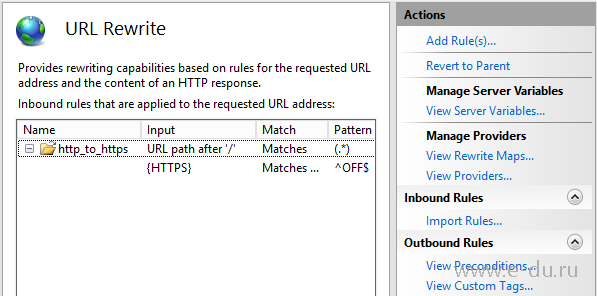
Пример добавление правила через визуальный интерфейс IIS:


