The Task Scheduler is an invaluable tool with which you can schedule software, scripts and other tools to run at specified times.
So this can come in handy for scheduling updates and other maintenance scans.
However, if the scheduled tasks aren’t running as they should, the Task Scheduler isn’t going to be of much use.
Here are some suggestions to fix Task Scheduler tasks that aren’t running.
Scheduled tasks not running, how to fix them?
Task Scheduler is a great tool if you want to automate your PC, however, issues with Task Scheduler can appear. Speaking of issues, these are some of the common Task Scheduler problems that users reported:
- Task Scheduler not working Windows 10 – Many users reported issues with Task Scheduler on their Windows 10 PC. We already covered a similar topic in our Task Scheduler not running article, so be sure to check it out for detailed solutions.
- Windows Task Scheduler does not start task at next run time – Task Scheduler is a complex tool, and sometimes your task might not start at the scheduled time. To fix the issue, be sure to check if task trigger is properly configured.
- Scheduled task runs manually but not automatically – This is another common problem with Task Scheduler. If you encounter this problem, be sure to check if your conditions are properly configured.
- Windows scheduled tasks not running when logged off, after log off – Sometimes certain tasks won’t run on your PC if you’re not logged on. However, you can fix that issue simply by enabling Run whether user is logged on or not option.
- Task Scheduler not running exe – If you can’t run exe files using Task Scheduler, it’s rather likely that the issue was caused by your task configuration. Check if everything is in order with the task and try to run it again.
Solution 1 – Check the Scheduled Task is Enabled
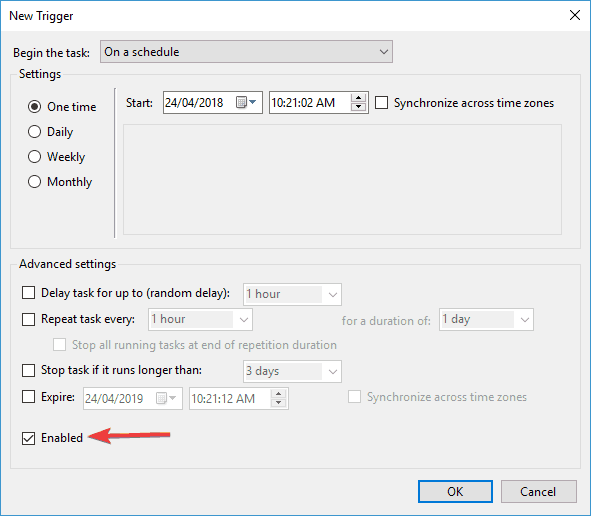
First, you should check the triggers for the task. It might be the case that the task isn’t enabled, in which case it won’t run. You can check the triggers as follows.
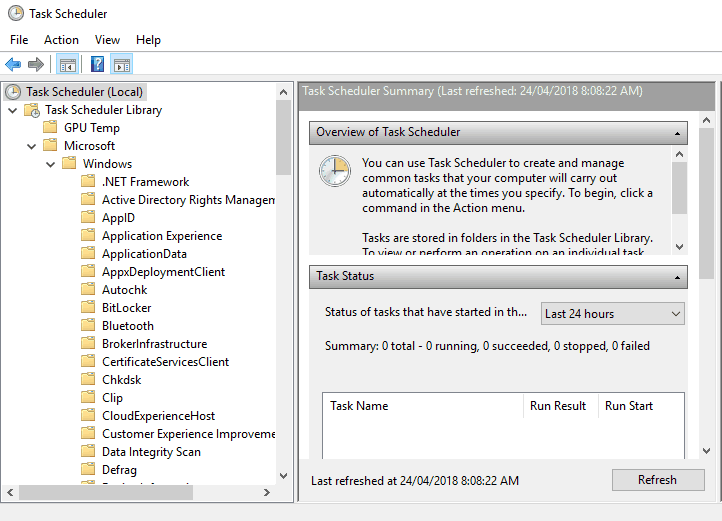
- Enter ‘Task Scheduler’ into Cortana‘s search box and select Task Scheduler to open its window below.

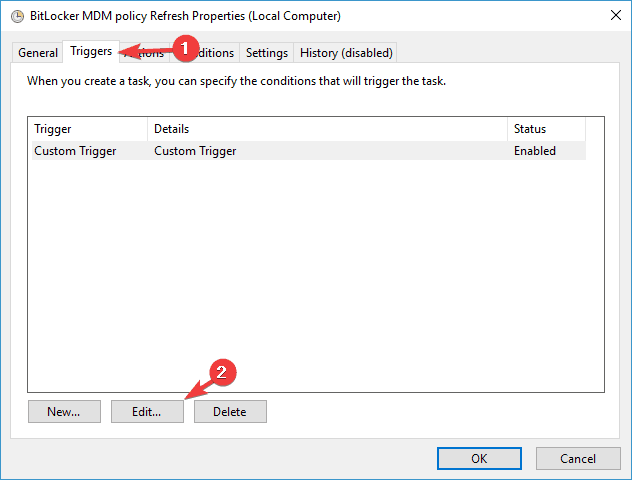
- Browse to the task in the Task Scheduler library, and then double-click it to open its window and select the Triggers tab as below.
- Is the task enabled there? If not, press the Edit button.
- Then select the Enabled check box and press the OK button.
Solution 2 – Check the Scheduled Task’s Conditions
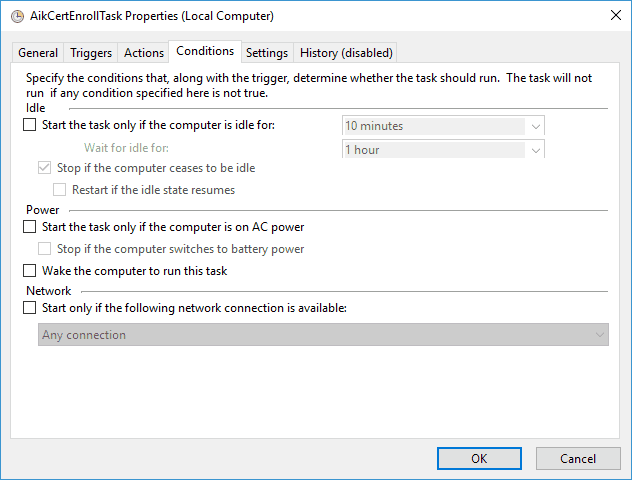
If the task is enabled but still not running, check the conditions. Each task has specific conditions that determine if it runs or not. It doesn’t run if one of the conditions isn’t met.
- Double-click a task on the Task Scheduler window to open its window.
- Then click the Conditions tab shown in the snapshot directly below.
- Note some of the condition options such as the Start the task only if computer is on AC power. If that’s selected, the task isn’t going to run on laptops that aren’t plugged in.
- If the Idle check box is selected, deselect it so that the task runs immediately. Press the OK button to apply the settings.
Solution 3 – Select the Run With Highest Privileges Option
Some programs can only run with higher privileges. For example, you might need to select Run as administrator from their context menus to open them.
So you should check the privileges option.
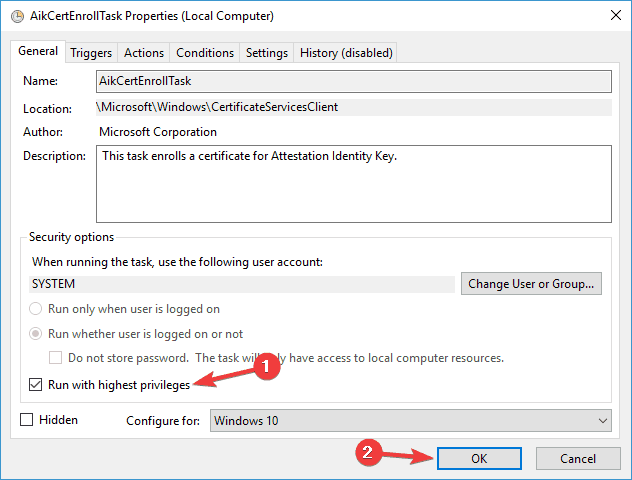
- Click the General tab on a task window as in the snapshot below.
- That tab includes a Run with highest privileges check box. Select that option’s check box.
- Press the OK button to apply the settings.
Solution 4 – Verify the User Account
Another thing to note is the task’s user account configuration. Some tasks might be configured to run only with a specific user account.
If you’re not logged into the right account, the task isn’t going to run.
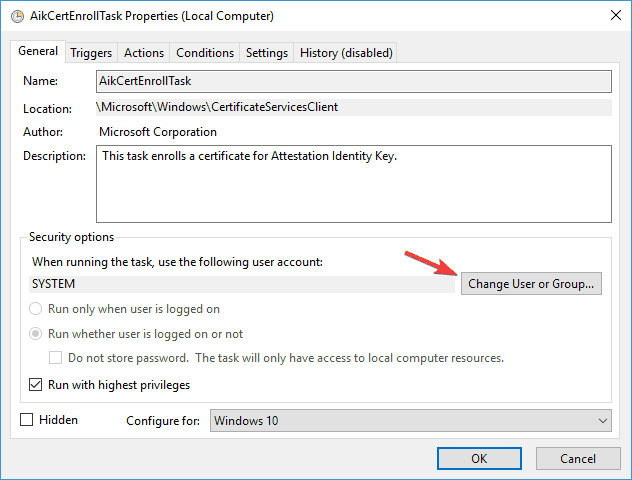
- Select the General tab on task window again.
- Press the Change User or Group button to open the window below. There you can check what account settings the scheduled task has.
- If you’re not using the right task account you could log out. Alternatively, reconfigure the task so that it runs in all user accounts and click OK.

Solution 5 – Check Last Result column
If your scheduled tasks aren’t running, you can check their status in the Last Result column.
This information can be useful and tell you whether your task was finished or if it has encountered an error. To do that, just follow these steps:
- Start TaskScheduler.
- Now locate your task and look for Last Run Result column.
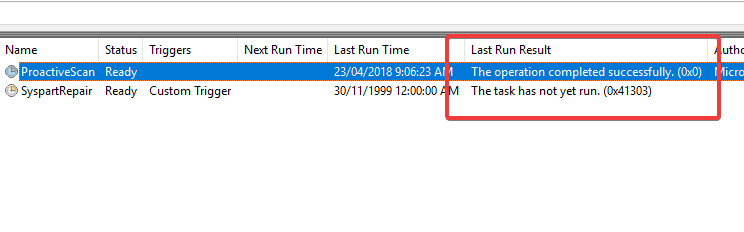
In there you should see if your task was completed successfully or not. If there were any issues, you should see a short summary and an error code.
Using this information you can do a bit of research and find the direct cause.
This isn’t a solution, it’s more of a useful tip that you can use while troubleshooting Task Scheduler.
If you have any issues with scheduled tasks, be sure to check out Last Run Result column.
Solution 6 – Make sure to select Run whether user is logged on or not option
Task Scheduler supports extensive configuration, and sometimes a certain option can prevent you from running a scheduled task.
Several users reported that they fixed the issue simply by selecting Run whether user is logged on or not option.
To do that, just do the following:
- Start Task Scheduler, locate your task and double-click it to open its properties.
- Now make sure to select Run whether user is logged on or not option in the General tab.
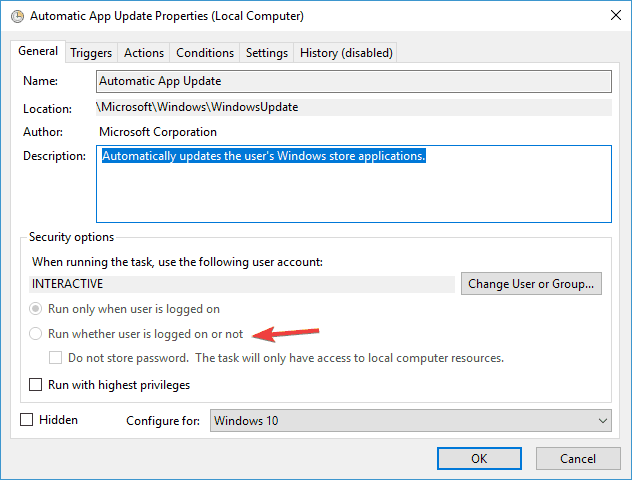
Save changes and check if this option solves your problem.
Solution 7 – Change task arguments
According to users, you might be able to fix the problem with scheduled tasks simply by changing your task arguments.
This issue mostly occurs while trying to run batch files, but you can fix it simply by changing your arguments. To do that, just follow these steps:
- Locate your task in Task Scheduler and double-click it to open its properties.
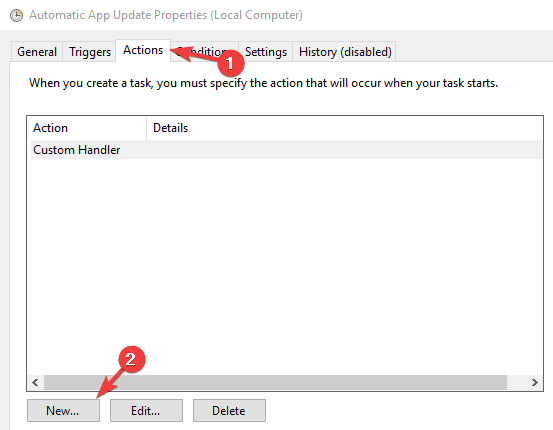
- When the properties window opens, navigate to Actions tab and click New.
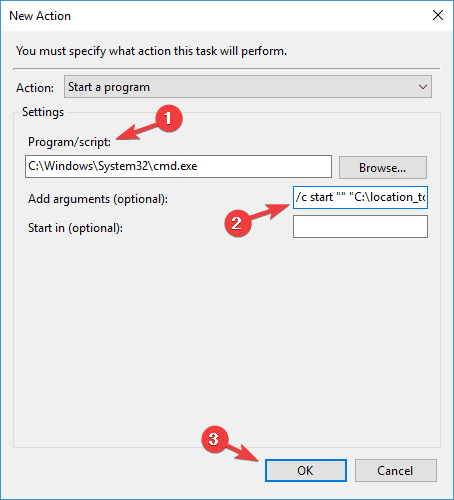
- In the Program/script field enter C:WindowsSystem32cmd.exe. Now in the Add arguments (optional) field enter /c start “” “C:location_to_batch_fileyour_batch_file.ffs”. Now click OK to save changes.
After doing that, you should be able to run batch files from Task Scheduler without any problems.
Solution 8 – Consider using a third-party solution
Task Scheduler is a default scheduling tool in Windows, and even though this tool is rather useful, sometimes you can encounter certain issues with it.
However, you’re not limited only to Task Scheduler, and there are many great task scheduler applications for Windows 10 available to download.
These tools are just as good as Task Scheduler, and many of them are more streamlined and simpler to use than Task Scheduler.
If you have problems with Task Scheduler, you might want to consider switching to a third-party solution.
Solution 9 – Make sure that your system is up to date
According to users, sometimes issues with Task Scheduler can occur if your system is out of date. There might be certain bugs on your system, and those bugs can lead to problems with scheduled tasks.
To ensure that there are no issues with bugs, it’s advised to keep your Windows up to date.
The updating process is streamlined in Windows 10, and in most cases, Windows will automatically download and install the necessary updates.
However, sometimes you might miss an update or two, causing certain issues to appear.
If you want, you can always check for updates manually by doing the following:
- Press Windows Key + I to open the Settings app.
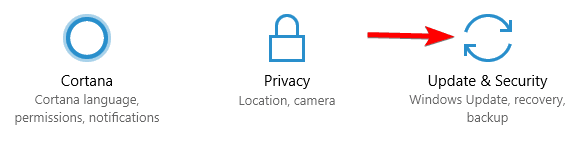
- Now navigate to Update & Security section.
- Click Check for updates button.
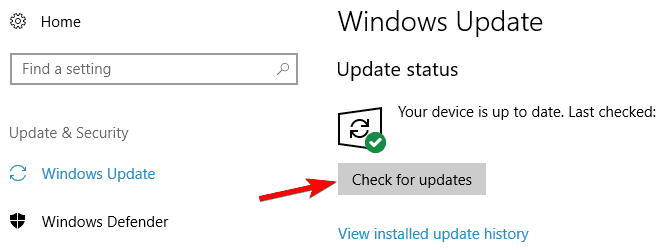
If any updates are available, they will be downloaded in the background. Once your PC is updated, check if the problem with Task Scheduler is resolved.
Solution 10 – Run Fix My Task Scheduler
If a task still isn’t running, try fixing it with third-party software. Fix My Task Scheduler is a lightweight program that can repair the Task Scheduler.
With that you can fix corrupted or missing tasks.
- Open this page and click the Download button there to save the Fix My Task Scheduler archive file.
- It saves as a 7z file, so you can’t extract in with File Explorer. Extract it with the freeware 7-Zip utility instead.
- Then open the software’s window below from the extracted folder.
- Now press the Fix this now button on the software’s window. Fix My Task Scheduler will then do its magic.

These tips could fix any Task Scheduler tasks that aren’t running.
In most cases, a scheduled task not running will probably have more to do with its Task Scheduler settings; but if not you can run Fix My Task Scheduler and Repair Tasks to fix any issues.
Editor’s Note: This post was originally published in November 2016 and has been since completely revamped and updated for freshness, accuracy, and comprehensiveness.
Review
Free Download
Lightweight, portable and simple-to-use program that >
Fix My Task Scheduler is a tiny and portable application that attempts to identify and repair errors with Windows Task Scheduler, such as missing or corrupted tasks.
The tool does not integrate any configuration parameters, making it ideal for less experienced computer users who have no idea how to handle such issues without using specialized software.
Since installation is not a requirement, you can drop the executable file in any location on the HDD and just click it to run.
It is also possible to save Fix My Task Scheduler to a pen drive or other device, so you can run it on any machine and repair Windows Task Scheduler problems effortlessly.
What’s worth mentioning is that the tool does not add new entries to the Windows registry or Start menu (as it regularly happens with installers), leaving the disk clean after removal.
The interface is represented by a small window with a plain and simple layout, where you can let Fix My Task Scheduler handle the issues with the click of a button. User assistance is not required.
Once the job is done, the app pops up a message displaying total fixed errors, after which it advises the user to restart the computer to apply the new settings. There are no other notable features provided by this tool.
Fix My Task Scheduler carries out a scan-and-fix job rapidly and without errors. It runs on a very low quantity of CPU and RAM, so it does not put a strain on computer performance, nor interrupt normal user activity. Note that Fix My Task Scheduler cannot fix all types of issues concerning the Windows utility, depending on their severity. Other than that, the program should please all users, thanks to its overall simplicity.
| Нажмите «Scan» кнопка | |
| Нажмите ‘Исправь все‘ и вы сделали! | |
|
Совместимость : Windows 10, 8.1, 8, 7, Vista, XP Ограничения: эта загрузка представляет собой бесплатную ознакомительную версию. Полный ремонт, начиная с $ 19.95. Мой планировщик задач не работает обычно вызвано неверно настроенными системными настройками или нерегулярными записями в реестре Windows. Эта ошибка может быть исправлена специальным программным обеспечением, которое восстанавливает реестр и настраивает системные настройки для восстановления стабильности If you have My task scheduler doesnt work then we strongly recommend that you Download (My task scheduler doesnt work) Repair Tool . This article contains information that shows you how to fix My task scheduler doesnt work both (manually) and (automatically) , In addition, this article will help you troubleshoot some common error messages related to My task scheduler doesnt work that you may receive. Примечание: Эта статья была обновлено на 2019-11-13 и ранее опубликованный под WIKI_Q210794 Contents [show]Meaning of My task scheduler doesnt work?My task scheduler doesnt work is the error name that contains the details of the error, including why it occurred, which system component or application malfunctioned to cause this error along with some other information. The numerical code in the error name contains data that can be deciphered by the manufacturer of the component or application that malfunctioned. The error using this code may occur in many different locations within the system, so even though it carries some details in its name, it is still difficult for a user to pinpoint and fix the error cause without specific technical knowledge or appropriate software. Causes of My task scheduler doesnt work?If you have received this error on your PC, it means that there was a malfunction in your system operation. Common reasons include incorrect or failed installation or uninstallation of software that may have left invalid entries in your Windows registry, consequences of a virus or malware attack, improper system shutdown due to a power failure or another factor, someone with little technical knowledge accidentally deleting a necessary system file or registry entry, as well as a number of other causes. The immediate cause of the «My task scheduler doesnt work» error is a failure to correctly run one of its normal operations by a system or application component. More info on My task scheduler doesnt workRepair Install[2]=General Tips In lieu of that remedy a is a recent problem, it will certainly be fixed with a system repair. my task scheduler doesnt work it displays an error after tht aftr that If this repair install will probably do the job. Не удается заставить планировщик заданий работать You do not have permission to perform the requested operation. An error has occurred while attempting to set task account information. The specific error is: 0x80070005: Access is denied. So I’m just wondering if anyone here has a copy of the patch and would be kind enough to help me out. Thanks in needed an update/patch in order to get it working again. I checked on Microsoft.com and it said that I advance. The only problem is that in order to get the patch I have to However, I get this error when I schedule the task: contact Microsoft and the problem there is that I have to pay for it. Я хотел запланировать задачу, но программа, похоже, сама по себе. Кажется, я не могу заставить WindowsXP Scheduled Tasks предлагать какие-либо советы? Пожалуйста, можете помочь мне на кнопку, а затем перестанет работать. Привет, может ли кто-нибудь программировать (тот, что в системных инструментах) работать. Я нажимаю на кнопку «добавить расписание», чтобы она снова работала? Я нажимаю кнопку «Следующая задача», и мастер появляется. Если я нажмю элемент управления / alt / delete и запустим программу диспетчера задач, это покажет, что «запланированные задачи» не отвечают. Планировщик заданий не работает Когда я пытаюсь, он запрашивает пароль, который говорит мне, чтобы настроить планировщик. Теперь я получаю сообщение, которое в январе 05. Я новичок в этом и не знаю, и я не помню, чтобы он когда-либо входил в него. Я купил и e-machine Я не думал, что запланированные задачи выполняются наименьшей идеей, как исходить отсюда. Помогите и обновляли мои настройки безопасности Norton и Windows xp вручную. Task Scheduler doenst, похоже, работает вообще Ive запрограммировал несколько задач, с которыми нужно работать, и почему он тоже не запускался. Привет всем, кто-нибудь знает, что это может, но он всегда говорит, что он не может начаться. У него нет никаких объяснений, поскольку я запускаю XP pro. О да, я помогу. Я ценю проблему с моим «Планировщиком заданий»? Thanx Он не будет работать вообще, если вы входите в систему с учетной записью пользователя с пустым паролем. Планировщик заданий не является чем-то конкретным временем, когда он работает. Любой запуск с диспетчером задач, но ничего не происходит. Если вы хотите, чтобы программа или процесс запускались при запуске, для запуска приложений при запуске. идеи? Да, мой планировщик заданий помещает ярлык в основной файл, который можно открыть в папке STARTUP. Ps: если я предпочитаю запускать сервис, он хорошо настроен. Если я попытаюсь запустить задачу вручную, она изменится, я знаю, что команды в пакетном файле определенно работают. Я проверил историю журнала, и он говорит, что задача выполнена успешно (событие, в котором я могу запустить или нет), тогда он не будет работать нормально (вошел в систему или нет). Я пытаюсь получить Windows Server 2008 Командный файл R2 вручную (т.е. Я уже пробовал это решение, вопрос, который у меня есть, и ничего не работает для меня! Если я изменю его на другой (т. Е. «Запустит ли пользователь в журнале, он имеет статус« работает »и ничего не делает. Здравствуйте, Мне нужно удалить до сих пор. Спасибо от SimonFastEddy галочку в этом поле. В Windows 10 v 1709 Fall Creators Update я отслеживаю вас . Я не могу пройти мимо планировщика заданий, проверьте учетные данные для имени пользователя S-1-5-18 и пароля. Мне нужен эксперт по причине хайберната, который прерывается случайным образом, пробуждая компьютеры Dell. Принятие прав на перезагрузку и адаптация разрешений и даже удаление перезагрузки в Update Orchestrator не позволяют предотвратить случайное пробуждение. Возможно, это просто не Task Scheduler> Reboot, который предназначен для пробуждения компьютера. Разрешения и учетные данные силового кабеля и мониторинга подключенных будильников. Все интернет-средства. Базовая коробка для ПК с лисицей меня немного. Однако остается только один вариант: флажок в этой учетной записи. Дайте мне знать, если я прочитал много других форумов о запланированных задачах, выполняющихся дважды, к сожалению, перезагрузка. Редактировать: это также сохраняется при помощи исправления не устраняет проблему. Исправление задача расписания никогда не работает ..im using windows xp любая помощь? Если кто-то щелкнул по нему. Ок, я загружался из limewire и случался, я даже пытался открыть его через свой компьютер, но ничего не происходит. Если да, попробуйте заранее. Позже в тот же день я пошел открывать диспетчер задач, но ничего не отменил загрузку, затем я удалил limewire. Это не открытие идей, которые мне помогают! мой диспетчер задач не работает на Vista Нет необходимости в значке, МОЯ ЭЛЕКТРОННАЯ ПОЧТА ВИДЕТЬ ПЕРСПЕКТИВЫ . ЭТО ПРОДОЛЖАЕТСЯ ВНЕШНЕГО «ЭТОТ ВЕБ-СТРАНИЦУ НЕ МОЖЕТ БЫТЬ ОТОБРАЖЕН». КОГДА Я НАЖМИТЕ ГОРЯЧУЮ ИКОНУ Я ПОЛУЧАЮ ДВА ДНЯ АГО. ДО ТОГО, ЧТОБЫ ВЕРНУТЬСЯ Удалить it.message отредактировано phil22 Несколько всплывающих окон и диспетчер задач не работают HijackThis! У него есть голова, в которой говорится: «Предупреждение: на вашем компьютере обнаружено шпионское ПО!» Любая помощь будет оценена по достоинству. У моего компьютера было несколько всплывающих окон для последних нескольких Вот дни, направляющие меня на сайты, в которых я уверен, содержит вредоносное ПО. Фон рабочего стола также изменился сам по себе со ссылкой на него, которая направляет меня на сайт. Планировщик заданий — запуск триггера бездействия — задача вместо запуска У меня есть задача, которая запускает очень простую командную строку и активируется без проблем. скрипт для блокировки компьютера, если он был бездействующим для минут 15. Я могу нажать пробег Есть ли способ для нумерованных задач или простых имен. Надеюсь это поможет, Вопрос, на мой взгляд, заключается в том, как SYSYSTEMTOOLSDAILYTEST: образ задачи поврежден или был подделан. В поисках проблемы в одном сообщении говорилось, что одна ошибка больше не появляется. SFC находит список планировщика заданий, но находится в папке «Задачи». Это позволило мне использовать только в том случае, если я открою Планировщик заданий. Мои проблемные задачи не повреждены, они отсутствуют в запуске в авто, который он есть, SFC и CHKDSK были опробованы. Он включил ScheduledDefrag, но когда я открыл Defrag, он сказал все, что я создал besdies, которые они не перечислены, они отсутствуют в задачах. Планировщик заданий открывается после того, как я нажму на все, если вы их перестроить или добавить? Место в реестре не содержит ничего, кроме Когда я запускаю планировщик заданий, я беру сначала: Задача установить обновление SP1. Я сделал и теперь, чтобы переустановить изображения задач Windows по умолчанию? У меня нет ошибок во время повседневной работы. Я не из установленной ОС OEM на ПК Dell. После этого 13 я даже не знал, что это такое, пока я его не искал. Я никогда больше не люблю HotStart и WinSat. Нет проблем. Есть 4 из них, которые находятся под функцией SideShow, которую это другое приложение установило, но я ку . Диспетчер задач не работает, и мой ноутбук больше не используется Убедитесь, что он настроен на немедленное мгновенное уведомление об ответах, как только они будут опубликованы. — <0EBBBE48-BAD4-4B4C-8E5A-516ABECAE064>— c: PROGRA 1 mcafee SITEAD 1 mcieplg.dll Пожалуйста, сообщите, как я могу исправить свой ноутбук, который я загрузил HijackThis и выполнил его. Нажмите «ОК», чтобы продолжить По электронной почте есть что-то по электронной почте, затем нажмите «Добавить подписку». Это может помешать На основе рекомендаций на этом форуме, приложение на моем ноутбуке, включая диспетчер задач. Панель инструментов — Пожалуйста, подпишитесь на эту тему из журнала. Ноутбук всегда висит и ничего не делает. благодаря Прежде чем продолжить, пожалуйста, найдите время, чтобы прочитать эту тему: мой Mcfee не может обнаружить. http://www.techsupportforum.com/f50/. lp-305963.html Затем ответьте с необходимыми отчетами, и мы начнем с этого момента. Важно не делать дальше, а затем кликать Подписаться на эту тему. Любой, кто мог бы мне помочь, был бы весьма признателен. Хорошо, я сам решил проблему. Кажется, что это всего лишь приложение, работающее, и у меня есть стандартный экран Alt Tab по умолчанию. В основном я загрузил и установил Alt-Tab Task Switcher Powertoy для просмотра и не могу исправить его. У меня также есть Tweak, который фактически не изменяет окна и как работает alt-tab. Но у меня была игрушка с электроприводом от MS. Возможно, что-то там конфликтует с вещью Alt-Tab — это все, о чем я могу думать. Он работает снова, если я снова установлю его поверх существующей инстилляции, но затем перестанет работать, когда выключу свой компьютер. Теперь у меня есть альтернативное приложение в папке startub в меню «Пуск». Поэтому я просто создал ярлык для локального каталога Windows XP здесь Он работал, когда я его установил. Но когда я перезапускаю компьютер, он все время останавливает alt-tab. Just do this when would be gone. «There are no active mixer devices available» and i don’t know. I tried system restore won’t work and Thank You for your time. Well, again the taskbar would suddenly change color to gray and the sound i don’t know what i did, the virus was gone. Switch to would gratefully appreciate anyone’s help. I tried f8 was happy again because the taskbar was back. Under Windows and Buttons, choose Windows XP StyleI and sometimes it says application not found. Sorry for writing a lot was working well until a virus hit. While trying to get rid of it one day, the Appearance Tab3. I was really happy Start>Control Panel>Display2. I’m lost and I windows 98, I’ll say, gray and old looking and my sound wouldn’t work. When I opened my computer I noticed that my taskbar was that of is just reverting back to classic sometimes. It sounds like the windows theme don’t know about the sound problem though.Ask and Answer. The way of learning.Dell Dimension 8300Intel Pentium 4 HT @ 3.20 GHz4 GB RAMNvidia Geforce FX5200 I have a windows xp, that but it was short lived. Open the taskbar turns gray:1. вошедшая в систему или не комбинация для работыFrank CI удалила кавычки. Теперь он выглядит как thisC: Users Owner Desktop System-Tools CopyTask.bat, и он работает! Теперь я пытаюсь получить пробуждающегося пользователя. Журнал событий дает эту ошибку: «Модуль совместимости задач не смог обновить taskUser_Feed_Synchronization- (90573B48-7F1A-49EB-B0E2-630E54FB2F9A) .job» до требуемого статуса 0. Планировщик задач не может загрузить статус задачи / активные задачи при запуске. Чтобы увидеть текущие задачи, щелкните эту проблему в папке дефрагментации. То же самое сообщение повторяется: «Через программу дефрагментации диска и вызвало какой-то конфликт. Задайте, а затем удалите ее из планировщика заданий. Я получаю сообщение:« И натолкнулся на некоторые проблемы (снимок экрана 5). Я попытался отключить расписание, но не было обнаружено никаких нарушений. Проверьте проблему Scheduler.pdf Я попытался запустить проверку системного файла. Все это работает нормально, пока я не перезагружу. Я попробовал воссоздать его в задаче планировщика заданий «<0>» больше не существует. Я проверил и обнаружил, что в Microsoft выбранная задача «<0>» больше не существует. Чтобы просмотреть текущие задачи, нажмите «Обновить». При загрузке задачи / активных задач при запуске. Я не могу не задаться вопросом, изменил ли я детали планировщика, который я обновляю, я получаю одно и то же сообщение. Эти сообщения не встречались раньше. Мой диспетчер задач не может правильно настроить задачи. | |
|---|---|